How to Show FPS in CS2: Every Method in 2026
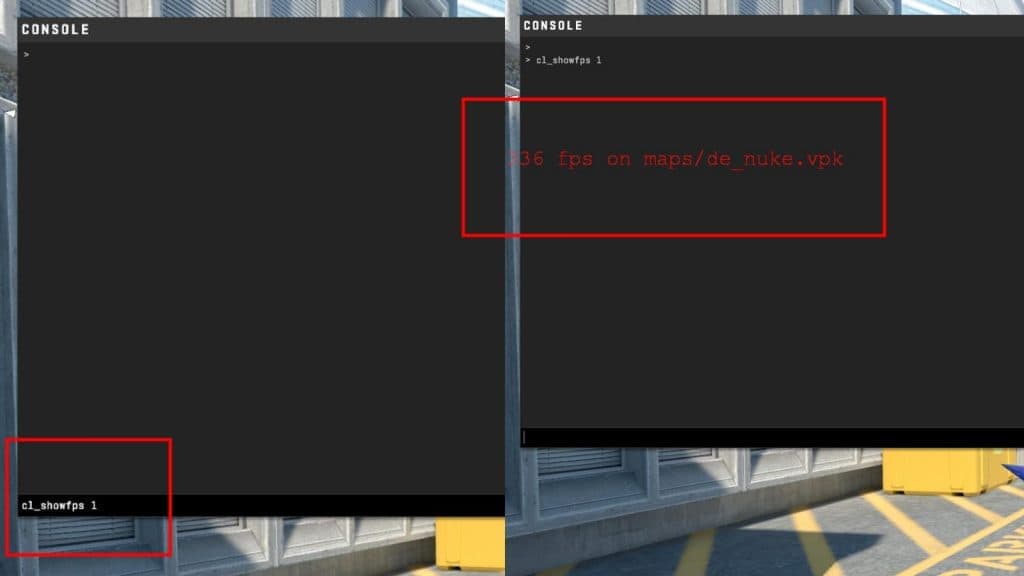
The cl_showfps command, Telemetry settings, Steam Overlay: all methods to display an FPS counter in CS2, with an explanation of every value.
Knowing your FPS in CS2 is a basic necessity for any player. Without it, you can't diagnose dips, verify that graphics settings are working, or understand why the game suddenly started "lagging." CS2 has three independent ways to show an FPS counter, from the built-in console to Steam Overlay.
Method 1: Console Command cl_showfps
The fastest method. Open the console (~ key) and enter a command:
- cl_showfps 0: hide the counter
- cl_showfps 1: show FPS only (minimal output)
- cl_showfps 2: FPS + smoothed FPS
- cl_showfps 3: FPS + frame time (ms)
- cl_showfps 4: FPS + frame time + graph
- cl_showfps 5: maximum detail (FPS, frame time, server tickrate, network data)
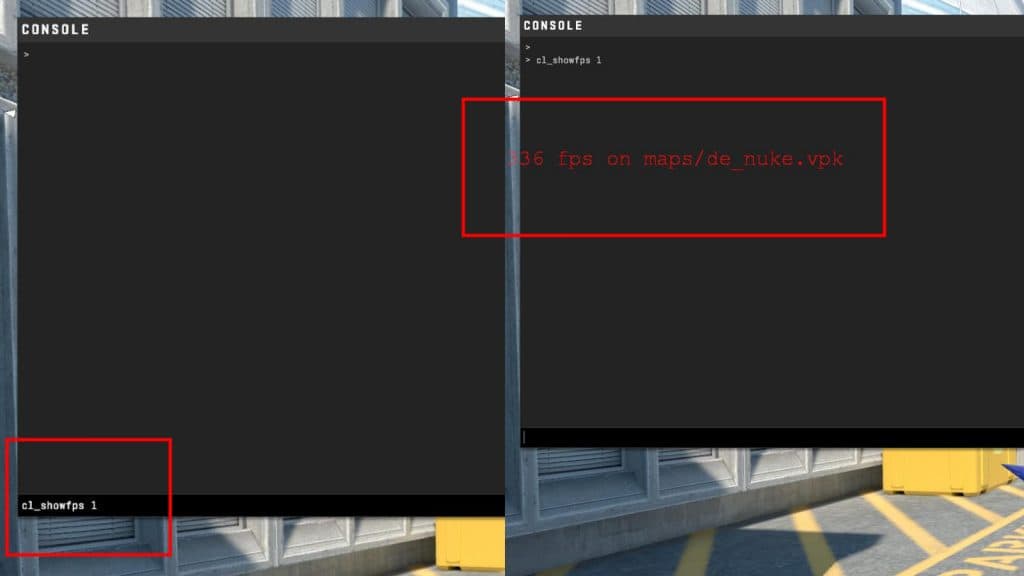
The counter appears in the top-left corner. To keep the command between sessions, add it to your autoexec.cfg:
- File path:
SteamsteamappscommonCounter-Strike Global Offensivegamecsgocfgautoexec.cfg - Add the line:
cl_showfps 1 - Save the file
The counter will be active automatically on the next CS2 launch.
Method 2: CS2 Telemetry Settings
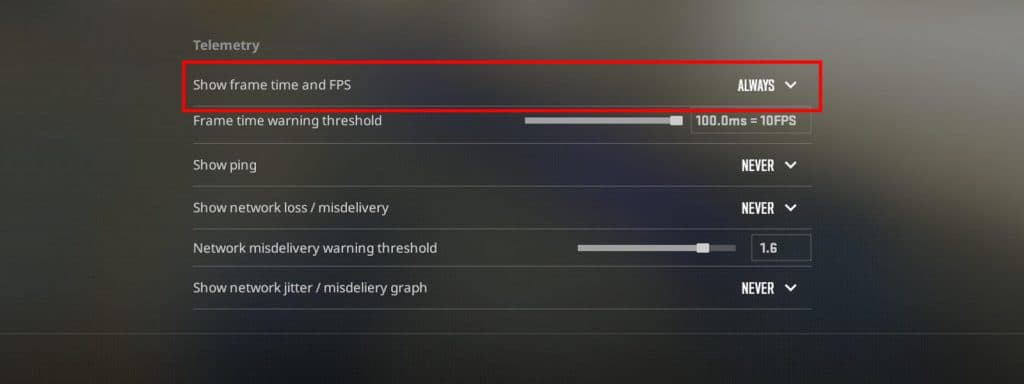
A built-in option inside the game, no console needed. Open:
- Settings (gear icon) → Game tab
- Telemetry section
- Show Frame Time and FPS → set to Always
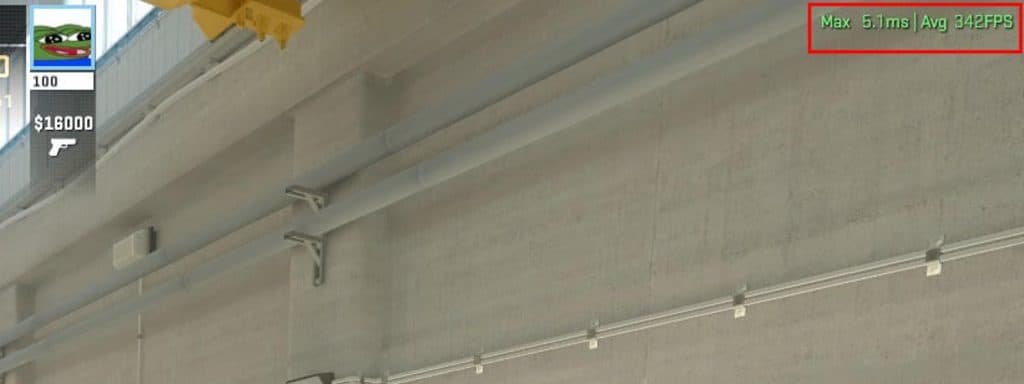
The result: a line appears in the top-right corner showing something like Max 5.1ms | Avg 342FPS. This is the most informative built-in option: it shows maximum and average FPS values, not just the instantaneous current figure.
Also available in the Telemetry section:
- Show Ping: ping to server in ms
- Show Network Loss: packet loss percentage (important with an unstable connection)
- Show Network Choke: "choked" packets due to network congestion
Method 3: Steam Overlay FPS Counter
Works in any game, not just CS2. Configured in Steam:
- Steam → Settings (top-left corner)
- In-Game section
- In-game FPS counter → choose a corner of the screen
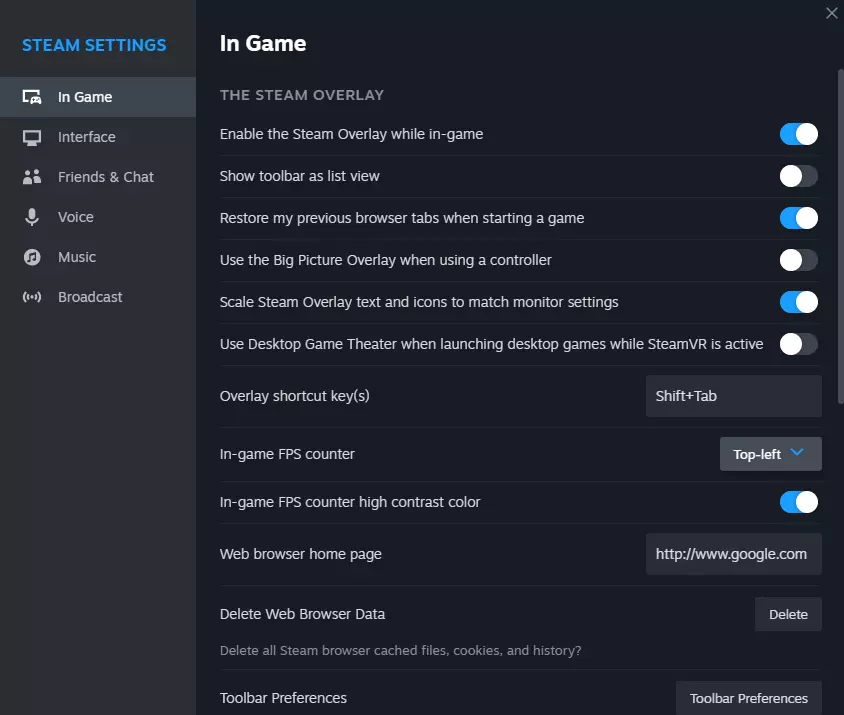
Steam Overlay shows FPS as a number in the chosen corner. There's a high contrast color option that makes the counter bright red, visible against any background. Downside: Steam Overlay adds a small overhead and may slightly impact FPS, especially on weaker PCs.
Which Method to Choose
| Method | Pros | Cons |
|---|---|---|
| cl_showfps 1 | Fast, minimal, no overhead | Current FPS only, doesn't persist between sessions |
| cl_showfps 5 | Maximum data: FPS, frame time, network | Clutters the screen, distracting |
| Telemetry (Always) | Avg + Max FPS, built-in, no console needed | FPS/frame time only, position can't be adjusted |
| Steam Overlay | Works in all games, flexible position | Small overhead |
Recommendation: for normal play, use Telemetry Always or cl_showfps 1. For diagnosing FPS dips and network issues, use cl_showfps 5 while testing, then back to 1.
Why the Console Might Not Open
If the console doesn't open when you press ~, it's disabled in settings:
- Settings → Game tab
- Game section → Enable Developer Console → Yes
After this, the console opens with the same key. You can rebind it in the Keyboard/Mouse section.
Seeing low FPS? Boost it with our how to boost FPS in CS2 guide. And if the numbers jump around due to your connection, check for packet loss. The easiest way to watch FPS under load is to open the aim trainer and keep an eye on the counter.
Big CS2 news, first on our Telegram
Patches, tournaments, pro settings. No fluff.