How to Boost FPS in CS2: Complete 2026 Guide
Graphics settings, console commands, launch options, Windows, NVIDIA/AMD: everything that actually works in CS2 in 2026, plus myths that give zero gains.
In CS2, FPS isn't about pretty graphics; it's a competitive advantage. At 60 FPS, input lag is ~16ms; at 240 FPS, it's ~4ms. The difference is felt in duels. Meanwhile, many "FPS guides" recycle advice from the CS:GO era that no longer works in CS2, or actively backfires. Here's what actually gives you gains in 2026.
Graphics Settings: What to Turn Off First
The most GPU-intensive settings in descending order of FPS impact:
| Setting | Recommendation | Reason |
|---|---|---|
| Multisampling Anti-Aliasing | Off or 2x MSAA | Most expensive setting. Off = maximum FPS. 2x is a compromise: below 2x enemies aren't visible through Vertigo's grates |
| Global Shadow Quality | Low | Enemy foot shadows are visible on Low. High loads the GPU with no competitive benefit |
| Ambient Occlusion | Disabled | Pure cosmetics, loads GPU |
| Shader Detail | Low | Impacts FPS, doesn't affect readability |
| Particle Detail | Low | Prettier explosions, lower FPS |
| Texture Detail | Medium | Low hurts wall texture readability. Medium is optimal |
| VSync | Off | Adds input lag. Always disabled |
| Motion Blur | Off | Hampers tracking and adds load |
| FidelityFX Super Resolution | Disabled | Blurs the image during flicks |
| Boost Player Contrast | Enabled | Makes enemies more visible, a competitive advantage |
Display Mode: always Fullscreen, not Borderless Window. Borderless processes input and renders frames through the compositor, and that's extra milliseconds of latency.
Console Commands for FPS Gains
Open console (~) and paste line by line:
- fps_max 0 removes the FPS cap. Alternative: fps_max 400 for 144Hz monitors (cap at refresh rate + 10 reduces GPU load without losing smoothness)
- mat_queue_mode 2 enables all CPU cores for rendering. If stutters appear, switch to -1 (auto)
- r_dynamic 0 disables dynamic lighting from shots and explosions
- cl_disable_ragdolls 1 disables ragdoll physics for killed players, reduces CPU load
- cl_hide_avatar_images 1 removes Steam avatar loading in the scoreboard
- vprof_off disables the performance profiler
- cl_showfps 1 shows the FPS counter. cl_showfps 2 adds min/avg/max for diagnosing dips
All commands can be added to autoexec.cfg in the CS2 folder, and they'll apply automatically on every launch. Path: Steam/steamapps/common/Counter-Strike Global Offensive/game/csgo/cfg/autoexec.cfg
Launch Options: What Works, What's a Myth
Right-click CS2 in Steam → Properties → Launch Options. Only paste this:
-novid -high -nojoy +fps_max 0
- -novid skips the Valve intro on startup
- -high raises CS2 process priority in Windows. Other applications get less CPU time
- -nojoy disables joystick/gamepad detection overhead
- +fps_max 0 mirrors the console command, works from first launch
What doesn't work in CS2:
- -tickrate 128: CS2 uses subtick; this command is completely ignored. Legacy from the CS:GO era
- -threads X: benchmarks show manual thread specification either has no effect or worsens 1% lows
- -vulkan: mixed results, heavily GPU-dependent. You can test on your own hardware, but don't set it by default
A key 2025 discovery: the ThourCS2 benchmark showed that on high-end PCs, launching without any launch options produced better 1% lows than using -high and -threads. If you have powerful hardware, try removing everything and compare.
Windows: 6 Settings Before Launching CS2
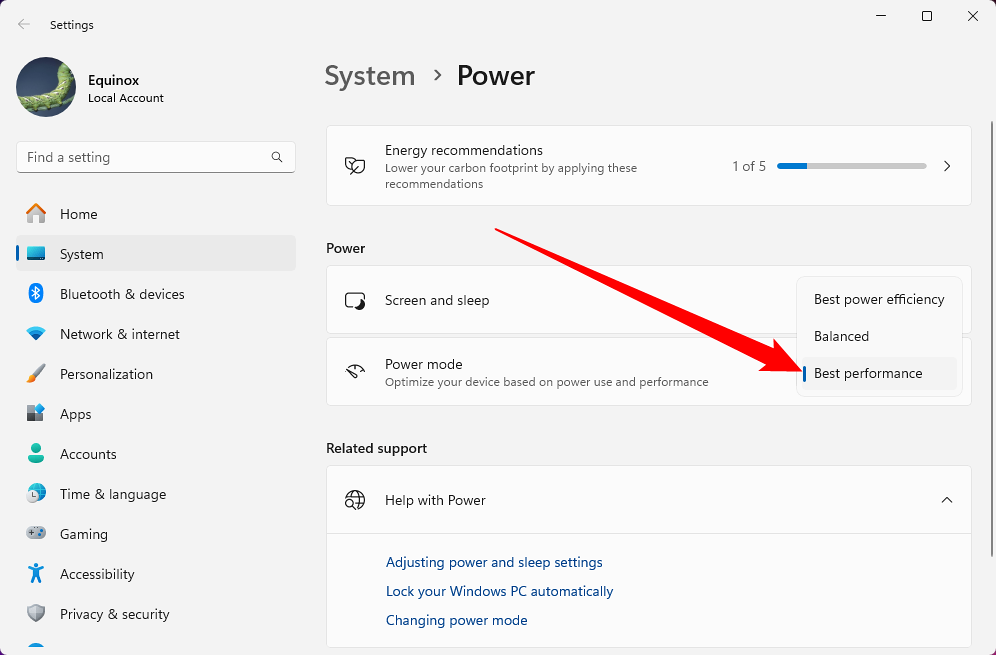
- High Performance Power Plan: Search → "Choose a power plan" → High Performance. On laptops, CPU and GPU default to power-saving mode
- Game Mode: Settings → Gaming → Game Mode → On. Windows prioritises resources for gaming
- Hardware-Accelerated GPU Scheduling: Settings → Display → Graphics → Change default graphics settings → On. Reduces CPU overhead when passing tasks to GPU
- Disable Xbox Game Bar: Settings → Gaming → Xbox Game Bar → Off. Causes micro-stutters even when not in use
- Fullscreen Optimizations: Find cs2.exe → Right-click → Properties → Compatibility → check "Disable fullscreen optimizations." Conflicts with CS2's native Fullscreen mode
- Visual Effects: Settings → System → About → Advanced system settings → Performance Settings → "Adjust for best performance." Removes Windows animations, frees up CPU
Additionally: Task Manager → Startup → disable Discord, browsers, OneDrive, cloud storage. They run in the background consuming RAM and CPU.
NVIDIA and AMD: Key Control Panel Settings
For NVIDIA (Control Panel → Manage 3D Settings → Program Settings → add cs2.exe):
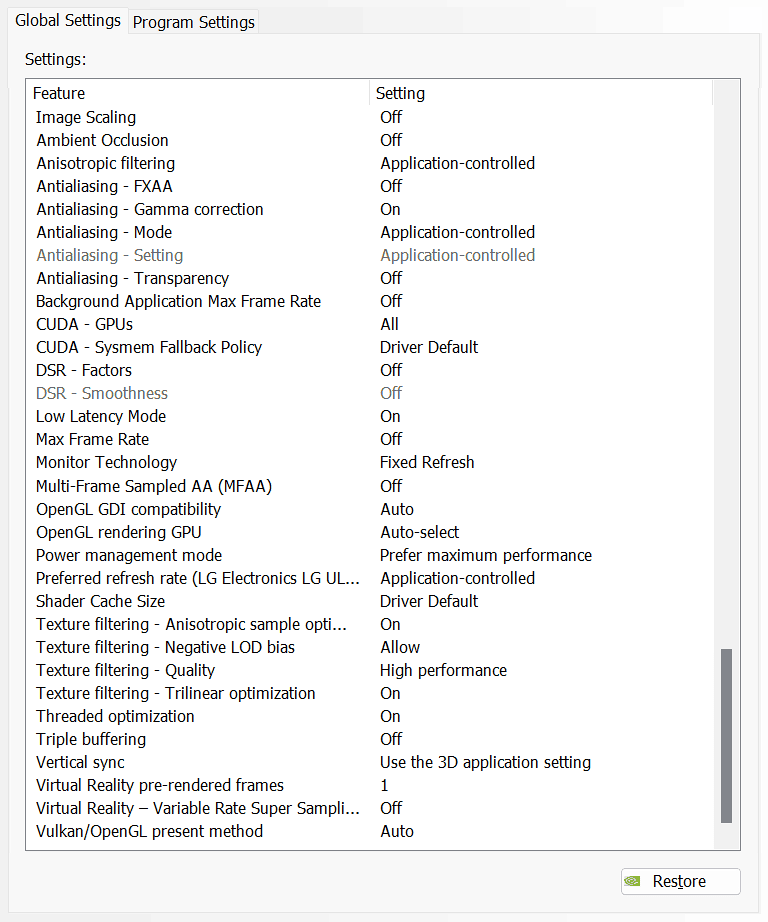
- Power Management Mode → Prefer Maximum Performance
- Low Latency Mode → On
- Vertical Sync → Off
- Texture Filtering – Quality → High Performance
- Antialiasing – FXAA → Off
- Ambient Occlusion → Off
- Triple Buffering → Off
Also in-game: enable NVIDIA Reflex Low Latency → On + Boost. On RTX 40-series cards, this reduces input lag by approximately 15ms.
For AMD (Radeon Software → Gaming → Global Graphics):
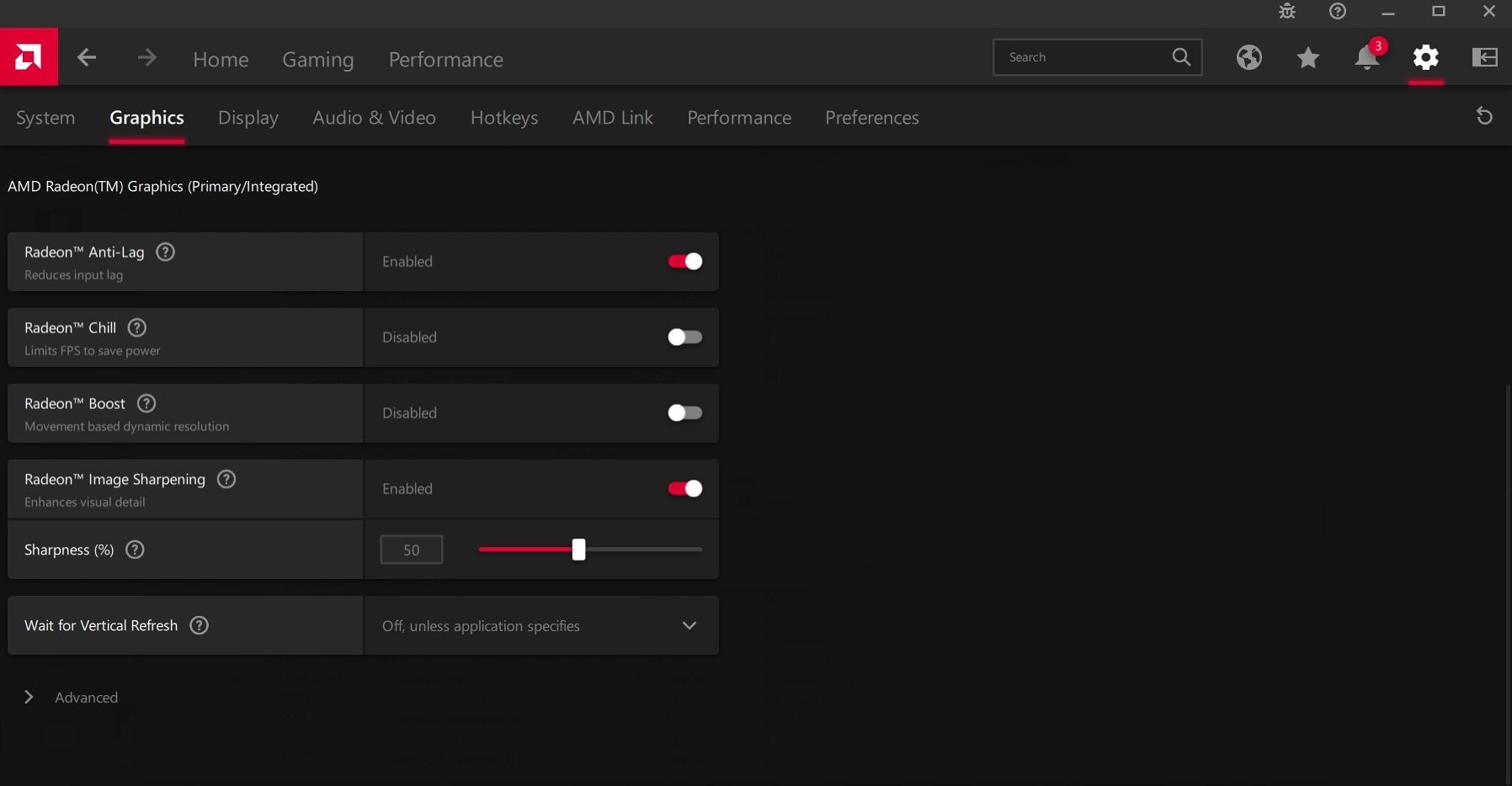
- AMD Anti-Lag 2 → Enabled (reduces input latency 30–40% in GPU-heavy scenarios)
- Radeon Chill → Disabled (creates variable input lag)
- Radeon Boost → Disabled (blurs the image during flicks, breaks aiming)
- Texture Filtering Quality → Performance
- Surface Format Optimization → Enabled
Software Optimization: Final Touches
Updating GPU drivers is the single most important item in this section. Valve regularly optimises CS2 for new drivers, and a 2-year-old version can cost you 20–30% FPS. For NVIDIA: download Game Ready Driver (not Studio). For AMD: Adrenalin.
- Clear temp folders: Win + R → %temp% → delete all. Then Win + R → temp → delete all
- Disk cleanup: Win + R → cleanmgr.exe → select system drive → clean up
- If CS2 is on an HDD, move it to SSD. HDD causes stutters during texture loading; SSD eliminates this completely
- RAM: if you have 8 GB, consider upgrading to 16 GB. CS2 + Discord + browser easily consumes 10–12 GB
Want to squeeze out maximum performance after FPS optimization? Read the CS2 aiming guide, because high FPS unlocks your potential only when combined with correct mechanics. Check your crosshair too: on low graphics settings readability matters more than looks, so browse pro crosshair codes or build your own in the generator.
Big CS2 news, first on our Telegram
Patches, tournaments, pro settings. No fluff.