How to Fix Packet Loss in CS2: Complete 2026 Guide
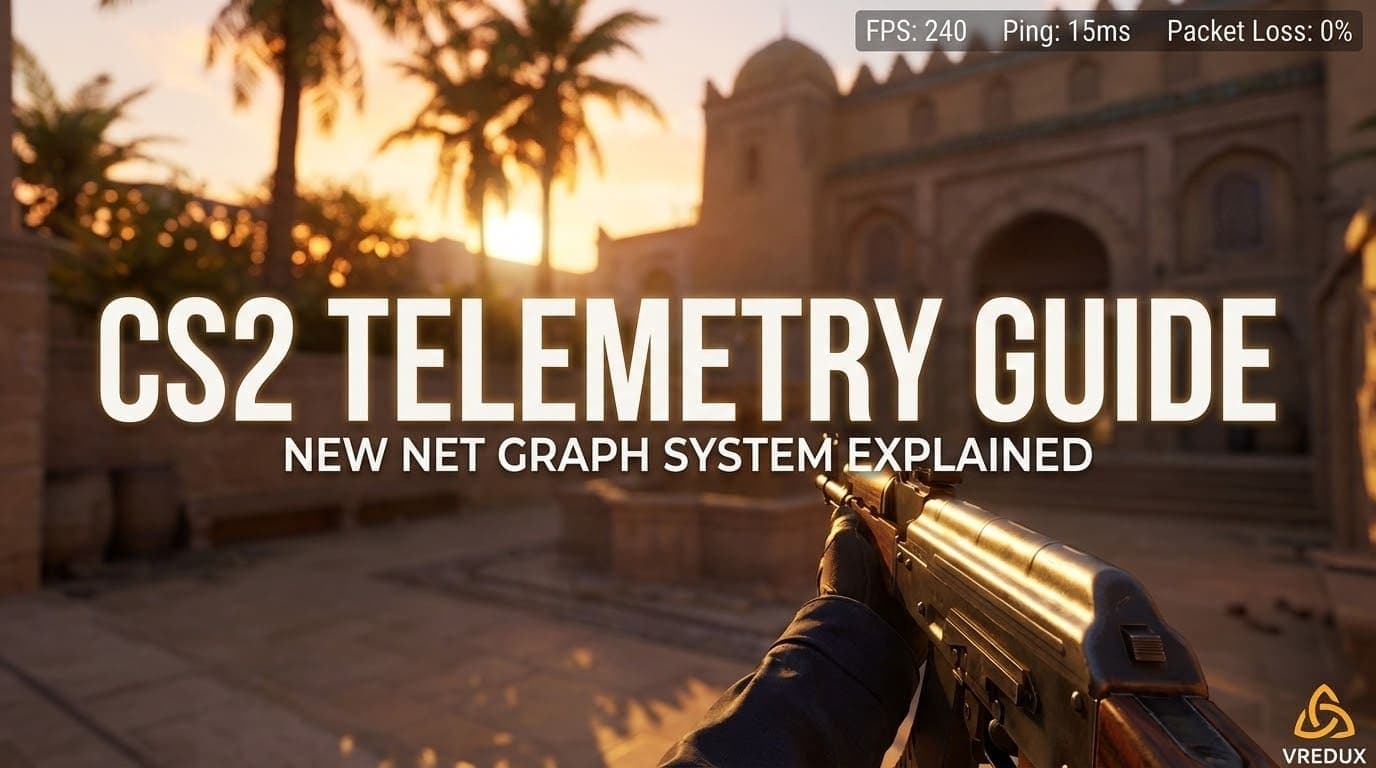
Rubber-banding, bullets going through enemies, teleporting backwards? That's packet loss. We cover the causes and the exact commands and settings to fix it.
Rubber legs, bullets phasing through opponents, your character teleporting back a second? This isn't lag or bad ping. This is packet loss. And in CS2 it's especially painful: the subtick system demands a stable connection, and even 1–2% packet loss makes the game feel broken.
Here's how to diagnose the problem and eliminate it step by step.
How to See Packet Loss In-Game
First, confirm the issue is real and not just perception. Three methods:
Method 1: Through Settings (Recommended)
Settings → Game → Telemetry → "Show Packet Loss / Misdelivery" → Always. The number appears directly in your HUD overlay.
Method 2: Through Console
net_graph 1Check the loss value in the overlay. It should be 0.
Method 3: Extended Graph
cq_netgraph 1
cq_netgraph_problem_show_auto 1
Displays a waveform network graph in the corner. Red spikes = packet loss in real time.
Normal vs Critical Packet Loss
| Loss % | Status | What Happens |
|---|---|---|
| 0% | Normal | Ideal: this is how it should be |
| 1–2% | Problem | Already noticeable in CS2 due to subtick |
| 2–5% | Serious | Hit-reg breaks, rubber-banding kicks in |
| 5%+ | Critical | Needs immediate attention |
CS2 is stricter than other shooters: the subtick system makes even 1% loss painful. Always target 0%.
Step 1: Check Whether It's Your Problem or Valve's
Before digging into settings, confirm the issue is on your end:
- Loss only on Valve servers, not on FACEIT/community servers → Valve-side problem
- Only appears at specific times of day (evening peak) → Valve server load
- Disappears when switching matchmaking region → specific data center issue
If it's Valve's fault, switch regions in CS2 settings and wait for them to fix their infrastructure. No console commands will help you there.
Step 2: Rate Settings
This is the first thing to check. Paste into console or your autoexec.cfg:
rate 786432
cl_updaterate 128
cl_cmdrate 128
If loss persists, try lowering:
rate 600000
cl_updaterate 64
cl_cmdrate 64
Monitor with net_graph 1. Keep whichever rate value gives you loss = 0.
Step 3: Steam Datagram Relay
net_client_steamdatagram_enable_override 1Forces routing through SDR (Steam Datagram Relay) instead of a direct connection. Eliminates loss for some players, does nothing for others. Test both 0 and 1, and keep whichever gives lower loss.
Step 4: Packet Loss Buffering
Settings → Game → "Buffering to smooth over packet loss/jitter"
- 1 tick for moderate packet loss
- 2 ticks for severe packet loss
Note: adds 1–2 ticks of latency. Only enable this if the problem is real and confirmed.
Step 5: Windows Settings
Network adapter (Device Manager → Network Adapters → Properties → Advanced):
- Interrupt Moderation → Disabled
- Energy-Efficient Ethernet → Disabled
- Green Ethernet → Disabled
- All Power Saving options → Disabled
Power plan: Control Panel → High Performance.
Steam: Settings → Downloads → Background downloads → Never while gaming.
DNS (if your ISP throttles):
Primary:   1.1.1.1  (Cloudflare)
Secondary: 8.8.8.8  (Google)
Step 6: Router
- Enable QoS, prioritize UDP, ports 27000–27050
- Wi-Fi → switch to a wired connection. Seriously, this fixes half of all cases
- If Wi-Fi is unavoidable, use the 5 GHz band
- Restart the router if loss appeared suddenly
What Doesn't Work: Dead Advice from CS:GO
- cl_interp / cl_interp_ratio: Valve removed these commands in CS2. The console accepts them, but they do nothing.
- -tickrate 128 in launch options: doesn't work; tick rate is dictated by the server.
- -tcp in launch options: no proven effect on packet loss whatsoever.
- net_graph 4 / net_graph 5: these don't exist in CS2; maximum is 3.
Summary: Order of Operations
- Confirm loss is real via
net_graph 1 - Verify the issue isn't on Valve's end (try switching regions)
- Set rate: start at 786432, reduce if loss persists
- Test
net_client_steamdatagram_enable_override 1 - Disable power saving on your network adapter
- Switch to a wired connection if on Wi-Fi
If CS2 isn't just dropping packets but crashing outright, see our guide on how to fix CS2 crashes. And for an overall performance boost, check how to boost FPS in CS2. Once the network is clean, tune the rest: pro sensitivities, crosshairs and gear live in the settings database, and the eDPI calculator converts a sensitivity to your own DPI.
Big CS2 news, first on our Telegram
Patches, tournaments, pro settings. No fluff.