How to Boost FPS in Valorant: Full 2026 Guide
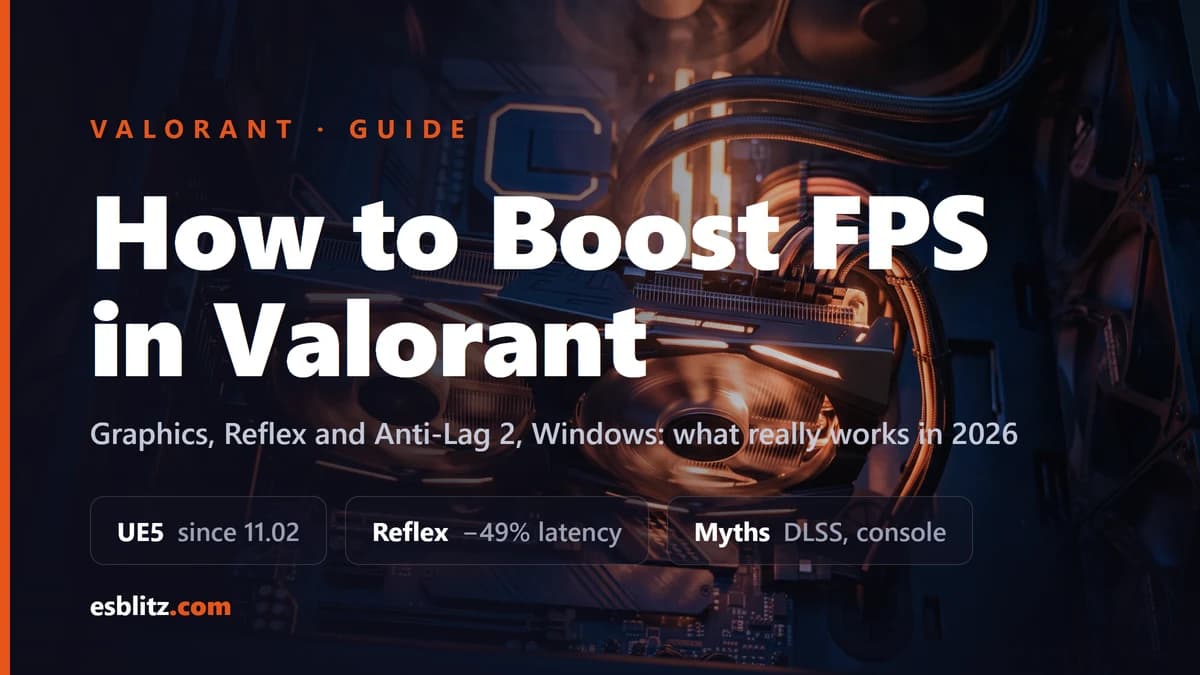
Valorant graphics settings ranked by FPS impact, Reflex and Anti-Lag 2, Windows and GPU panels, Vanguard requirements: what works after UE5 and the myths.
Valorant was built to run on almost anything: Riot budgeted 6.9 ms per frame for 144 FPS and kept 2012-era integrated graphics as the minimum spec. But since patch 11.02 (29 July 2025) the game runs on Unreal Engine 5.3, there are more effects and maps, and "runs on a toaster" no longer describes every PC. Below: which settings actually buy you FPS, which only make the picture worse, and which CS2-guide tips simply do not apply here, Valorant has no console, no launch options and no upscalers.
First, find your bottleneck
Before touching sliders, turn on the built-in telemetry: Settings → Video → Stats has Client FPS, Total Frame Time, CPU Frame Time and GPU Frame Time. If the CPU frame time is clearly higher than the GPU one, you are CPU-bound and lowering graphics will barely help, only background cleanup and Windows tweaks will. If GPU is higher, the graphics section is for you. Every counter is covered in our separate guide on showing FPS and ping in Valorant.
Graphics settings: what to turn off first
Everything lives in Settings → Video → Graphics Quality. Riot deliberately designed the game so that Low and High give no competitive edge: there are no dynamic shadows, and between presets "there shouldn't be differences that would change the competitive landscape" (Riot's tech blog on shaders). So on Low you lose nothing but eye candy.
| Setting | Set to | Why |
|---|---|---|
| Material Quality | Low | The heaviest option: material and shader quality. On weak GPUs High → Low is worth dozens of FPS |
| Texture Quality | Low or Medium | Eats video memory. On 2–4 GB cards keep it Low |
| Detail Quality | Low | Small props and clutter; adds nothing to readability |
| UI Quality | Low | Interface quality; small FPS impact, but nothing to lose |
| Vignette | Off | Darkens screen edges: hurts peripheral vision, no benefit |
| VSync | Off | Adds input lag. Only on a G-Sync/FreeSync monitor together with Reflex |
| Anti-Aliasing | None or MSAA 2x | Smoothing is expensive; MSAA 2x is the compromise if jaggies annoy you |
| Anisotropic Filtering | 1x–4x | Texture sharpness at angles; above 4x you cannot see the difference in play |
| Improve Clarity | Off | Contrast post-processing. Cut up to a third of FPS in PC Gamer's test with no visibility gain |
| Experimental Sharpening | Off | Sharpening on top of the image, same post-processing, same answer |
| Bloom | Off | Glow washes out enemy models on bright maps |
| Distortion | Off | Ability distortion gets in the way of aiming exactly when it matters most |
| Cast Shadows | Off | Object shadows: a bit of FPS and less visual noise. Player shadows are not affected |
| First Person Shadows | Off | Your own model's shadow, pure cosmetics |
Separately, Display Mode: Fullscreen, not Windowed Fullscreen: in windowed modes the frame goes through the Windows compositor. Use your monitor's native resolution: Riot recommends 16:9, while 16:10, 5:4 and 21:9 are officially flagged as "issues may pop up in full-screen mode".
Limit FPS, Reflex and Anti-Lag 2
The General block of the Video tab has four independent limiters: Limit FPS Always, On Battery, In Menus and In Background, each with its own value. The logic:
- In Menus and In Background: turn on and set 60: in the lobby or when alt-tabbed the GPU should not spin at 100%, that is extra heat and throttling before a match.
- Always: on a monitor without adaptive sync leave it off: more FPS means less latency. With G-Sync/FreeSync cap a couple of frames below the refresh rate so you never hit the VSync ceiling, NVIDIA's own advice in its system latency guide.
- On Battery: laptops only; you will not be playing on battery anyway.
NVIDIA Reflex Low Latency: On for any GeForce from GTX 900 upwards; try On + Boost if the GPU is not at 100%. According to NVIDIA, on the RTX 50 series Reflex cuts PC latency in Valorant by up to 49%. Radeon owners got AMD Anti-Lag 2 in patch 12.09 (12 May 2026), a toggle at the bottom of the tab that needs a driver from 9 March 2026 or newer. It cuts latency where the GPU is the bottleneck; in CPU-bound scenarios the effect is modest, as PC Gamer's test confirmed.
Multithreaded Rendering: leave it on: the game enables it itself when the CPU has enough threads, and turning it off removes the separate render thread and adds stutter. And there is no point looking for Raw Input Buffer anymore: patch 11.06 (16 September 2025) removed the setting and forced it on for everyone as the more performant option.
Windows: what to set before launching
- Power plan: High Performance (or Ultimate Performance). Average FPS barely changes, but 1% lows get smoother: the CPU stops parking cores.
- Game Mode: Settings → Gaming → Game Mode → On. Windows prioritises the game and postpones background updates.
- Hardware-accelerated GPU scheduling: Settings → System → Display → Graphics → Default graphics settings. Per Microsoft it lowers GPU scheduling overhead and latency rather than raising average FPS; turn it off if stutter appears after enabling.
- Overlays: Discord, Xbox Game Bar, Medal, a browser overlay with Twitch: each one draws over the frame. Keep one (NVIDIA App or AMD Software), disable the rest.
- Startup apps: Task Manager → Startup: browsers, cloud drives, other launchers. Valorant loves CPU time, and everything running in the background steals it from the simulation.
- Drivers: fresh NVIDIA/AMD, and for Anti-Lag 2 that is a hard requirement.
On Vanguard: on Windows 11 it requires TPM 2.0 and UEFI Secure Boot: that is in Valorant's official system requirements. VAN 9001 means Secure Boot is off, VAN 9003 means TPM 2.0 is off or not detected; both are fixed by enabling Secure Boot and fTPM (AMD) or PTT (Intel) in the BIOS, and Riot has a step-by-step guide. Vanguard itself does not noticeably cut FPS, but a system with virtualisation-based security (VBS/HVCI) is slightly slower, that is the price of Windows 11, not of the anti-cheat.
NVIDIA and AMD panels
NVIDIA Control Panel → Manage 3D Settings → Program Settings → VALORANT-Win64-Shipping.exe:
- Power management mode → Prefer maximum performance;
- Low Latency Mode → Off: in Reflex-enabled games the in-game Reflex takes priority, and NVIDIA explicitly recommends using it instead;
- Vertical sync → Off (or Use the 3D application setting, then the game decides);
- Texture filtering, Quality → High performance.
AMD Software → Gaming → VALORANT: Radeon Anti-Lag through the game (Anti-Lag 2), Radeon Boost and Chill off, Wait for Vertical Refresh → Off unless application specifies, Texture Filtering Quality → Performance.
What does not work: myths from CS2 guides
- Console commands and launch options. Valorant has no console and no -novid -high style launch parameters; everything the "configs" promise is done only through the menu.
- DLSS, FSR, DirectX 12. The UE5 switch in patch 11.02 added neither upscalers nor DX12: they are not in the patch notes and not in the client. Sites promising to "enable DLSS in Valorant" describe a different game.
- Stretched 4:3. There is no native stretched mode. You build it manually: a custom 4:3 resolution in the NVIDIA/AMD panel with full-screen scaling plus Aspect Ratio Method → Fill in game. FPS barely grows from it, the game is CPU-bound.
- "Improve Clarity helps you see enemies". It is a contrast filter: it costs FPS and highlights nothing.
- "Disable Vanguard for FPS". The game will not start without it, and the gain people attribute to disabling it usually comes from the reboot.
Official system requirements
| Tier | Target | CPU | GPU |
|---|---|---|---|
| Minimum | 30 FPS | Intel Core i3-540 / AMD Athlon 200GE | Intel HD 4000 / Radeon R5 220 |
| Recommended | 60 FPS | Intel Core i3-4150 / AMD Ryzen 3 1200 | GeForce GT 730 / Radeon R7 240 |
| High-end | 144+ FPS | Intel Core i5-9400F / AMD Ryzen 5 2600X | GTX 1050 Ti / Radeon R7 370 / Arc A310 |
Plus 4 GB RAM and 1 GB VRAM, Windows 10 (build 19041+) or 11, and a CPU with SSE 4.2 or AVX. If your hardware is at the "recommended" level and FPS is under 60, the problem is not graphics settings but background load, overheating or drivers.
Step-by-step order
- Turn on Stats and find out whether the CPU or the GPU holds the frame.
- Set graphics per the table, Fullscreen, native 16:9 resolution.
- Enable Reflex (or Anti-Lag 2), In Menus / In Background limits, leave Multithreaded Rendering alone.
- Windows: power plan, Game Mode, extra overlays and startup apps gone.
- GPU panel: maximum performance, VSync off.
- Open Stats again and compare Total Frame Time before and after.
After the graphics pass it is worth checking your sensitivity too: with new FPS and latency the mouse feels different. If you came from CS2, there is a sensitivity transfer guide, and you can compare your eDPI with the pro scene in the pro settings database. The same breakdown for the other game, how to boost FPS in CS2. To feel the difference after tuning, open the aim trainer, and pick a crosshair for low settings in the pro crosshair gallery.
Frequently asked questions
Why is my FPS low in Valorant when the game is "light"?
The game gets heavier every act: new effects, maps, the 2025 move to UE5. Valorant is also more often CPU-bound than GPU-bound, lowering graphics does not help then; you need to clear the background and enable Game Mode.
Should I enable NVIDIA Reflex in Valorant?
Yes, on any GeForce from GTX 900 upwards. Start with On; try On + Boost if the GPU is not fully loaded. NVIDIA claims up to 49% lower PC latency on RTX 50.
Does Valorant have DLSS or FSR?
No. Neither the Unreal Engine 5 patch notes (11.02) nor later updates added upscalers, and there are none in the graphics menu.
Where did Raw Input Buffer go?
Patch 11.06 (16 September 2025) removed the setting: raw input buffering is now forced on for everyone because it performs better.
Cap FPS or leave it uncapped?
Without adaptive sync, uncapped: more frames, less latency. With G-Sync/FreeSync, cap 2–3 frames below the monitor's refresh rate so VSync never kicks in. Menu and background limits are useful for everyone.
Sources
Official Riot pages: Valorant system requirements, patch notes 11.02 (Unreal Engine 5), 11.06 (Raw Input Buffer) and 12.09 (AMD Anti-Lag 2), the tech blog Valorant Shaders and Gameplay Clarity, supported resolutions, TPM 2.0 guide. Also: NVIDIA system latency guide, Microsoft's HAGS blog post.
Big CS2 news, first on our Telegram
Patches, tournaments, pro settings. No fluff.